Your old laptop doesn't need to gather dust just because it's slowing down. You might think the only solution is shelling out money for a new machine, but that's rarely true. Most aging laptops can feel surprisingly quick again with a handful of free or dirt-cheap tweaks that take an hour or two of your time. The slowdown you're experiencing usually comes from software bloat, dust buildup, and settings that prioritize flash over function. Let's walk through practical ways to breathe new life into that machine without breaking the bank.
Disable Startup Programs That Launch Automatically
Every program that launches when you turn on your laptop steals a slice of your boot time and memory. Over the years, installed apps quietly add themselves to your startup list, and before you know it, your laptop takes five minutes to become usable after powering on.
On Windows, press Ctrl + Shift + Esc to open Task Manager, then click the Startup tab. You'll see a list of everything that launches automatically, along with each program's impact on boot time. Disable anything you don't need immediately - things like Spotify, Skype, or Adobe updaters. You can always open these programs manually when you actually need them.
This single change can cut your boot time dramatically. We're talking about going from a slow crawl to a usable desktop in under a minute. The performance boost extends beyond startup too, because those disabled programs aren't sitting in the background consuming RAM while you work.
Mac users can do the same thing by going to System Settings, then Users & Groups, and selecting Login Items. Remove anything that doesn't need to be there from the start.
Strip Down Visual Effects and Prioritize Performance
Windows comes loaded with animations, transparency effects, and visual flourishes that look nice on newer hardware but choke older processors and integrated graphics. Your aging laptop is wasting precious resources rendering these eye candy features instead of running your actual programs smoothly.
Right-click on This PC or My Computer, select Properties, then click Advanced system settings. Under Performance, hit Settings and choose "Adjust for best performance." This turns off almost all visual effects in one click. If the resulting interface feels too bare, switch to Custom and selectively enable just a few effects you can't live without, like showing thumbnails instead of icons.
The difference is immediately noticeable. Windows and menus snap open instead of fading in. Dragging windows feels responsive rather than laggy. You're essentially telling your laptop to stop wasting time making things look pretty and focus on being fast.
This approach works because older hardware simply can't handle the computational overhead of modern interface effects while running your actual applications. By cutting the visual fat, you free up processing power for the things that matter.
Clean Out Digital Clutter and Physical Dust
Your hard drive fills up over time with temporary files, cached data, old downloads, and programs you installed once and forgot about. This digital mess slows everything down, especially if you're running a traditional spinning hard drive rather than a solid-state drive.
Start with Windows Disk Cleanup. Type it into the search bar, select your main drive, and check all the boxes. Run it, then click "Clean up system files" to run it again with deeper access. This removes gigabytes of temporary files, old Windows updates, and cached data you don't need.
Next, uninstall programs you don't use. Open Settings, go to Apps, and sort by size. You'll probably find massive programs you haven't opened in years. Remove them. Even if you might want them someday, you can always reinstall later.
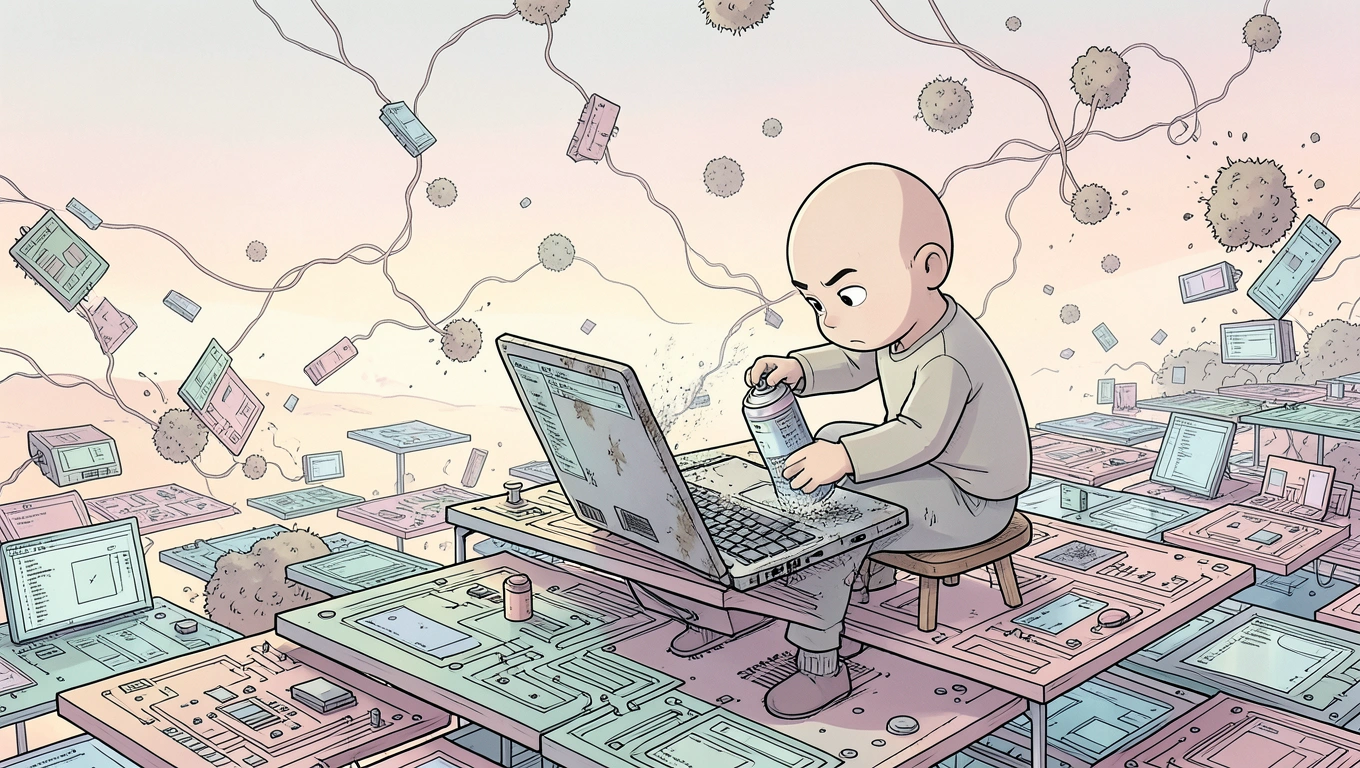
Physical dust matters just as much as digital clutter. Dust buildup inside your laptop blocks airflow and causes overheating. When your processor gets too hot, it automatically throttles itself to prevent damage, making your laptop feel sluggish even when it's not doing much.
Power off your laptop, unplug it, and use compressed air to blow dust out of the vents. If you're comfortable opening the case, clean the fan blades and heat sink too. A can of compressed air costs a few dollars and can restore significant performance if your laptop has been running hot.
Consider a Clean Windows Reinstall
Nothing rejuvenates an old laptop quite like a fresh Windows installation. Years of updates, installed programs, and accumulated system changes create layers of digital cruft that slow everything down. A clean slate eliminates all of it.
Windows 10 and 11 make this easier than ever with the built-in "Reset this PC" feature. You can keep your personal files while wiping all programs and settings, or start completely fresh. The process takes an hour or two, and you end up with a laptop that feels close to how it did on day one.
Before you reset, back up anything important to an external drive or cloud storage. Make a list of programs you actually need to reinstall afterward. You'll probably realize you don't need half of what was installed before.
After the reset, be selective about what you put back. Only install programs you use regularly. Skip the bloatware. Keep your startup list lean. This discipline helps maintain the speed boost long-term.
If you're running an ancient version of Windows, consider installing a lightweight Linux distribution instead. Options like Linux Mint or Lubuntu require minimal resources and can make a decade-old laptop feel surprisingly usable for basic tasks like web browsing and document editing.
Quick Takeaways
- Disabling unnecessary programs from starting automatically can significantly improve your laptop's boot times and overall responsiveness
- Adjusting Windows visual effects to prioritize performance can free up valuable processing power on older machines
- Regularly clearing temporary files and uninstalling software you no longer use helps free up disk space and system resources
- Cleaning dust from inside your laptop's vents and cooling components can prevent overheating and performance throttling
- Performing a clean reinstall or factory reset of Windows can eliminate accumulated bloatware and junk files
- Task Manager's Startup tab shows exactly which programs slow down your boot time and lets you disable them instantly
- A can of compressed air and thirty minutes can solve overheating issues that make your processor slow down to protect itself
Conclusion
Reviving an old laptop doesn't require technical expertise or spending money on upgrades. The strategies covered here - managing startup programs, adjusting visual effects, cleaning out clutter, and considering a fresh Windows install - cost nothing but time. Most people see dramatic improvements from just the first two tweaks alone.
The key is understanding that slowness in older laptops rarely comes from hardware failure. It comes from years of accumulated digital baggage and settings that prioritize appearance over speed. By stripping away that baggage and telling your system to focus on performance, you can extend your laptop's useful life by years.
You won't match the speed of a brand new machine, but you'll rediscover a laptop that's perfectly adequate for everyday tasks like browsing, email, document work, and streaming. That beats buying a replacement, especially when the fix takes less time than shopping for a new one.
FAQs
Will upgrading RAM make my old laptop faster?
It can, but try the free software tweaks first. If you're constantly maxing out your existing RAM, adding more will help - but if your slowness comes from a cluttered system or overheating, more RAM won't solve it. Check Task Manager while using your laptop normally to see if RAM usage consistently hits 90-100%. If it does, and if your laptop allows upgrades, adding RAM might be worth the cost.
Should I replace my hard drive with an SSD?
This is the single best hardware upgrade you can make, but it costs money. An SSD makes boot times and program launches dramatically faster. However, try all the free optimizations first. If your laptop still feels too slow after those changes, then consider an SSD. Prices have dropped significantly, and even a budget SSD will outperform any spinning hard drive.
How often should I clean dust from my laptop?
Every six months if you use your laptop in a dusty environment, annually if it's in a clean space. Signs you need cleaning include the fan running louder than usual, the laptop feeling hot to the touch, or unexpected slowdowns during basic tasks. Heat-related throttling often gets misdiagnosed as a failing laptop when it's just dust blocking airflow.
Is it safe to disable antivirus from startup programs?
No, leave your antivirus in the startup list. Windows Defender or whatever security software you use should launch automatically. Disable things like chat apps, music players, cloud storage sync tools, and program updaters instead. Security software is one of the few things that genuinely needs to run from boot to protect you immediately.