
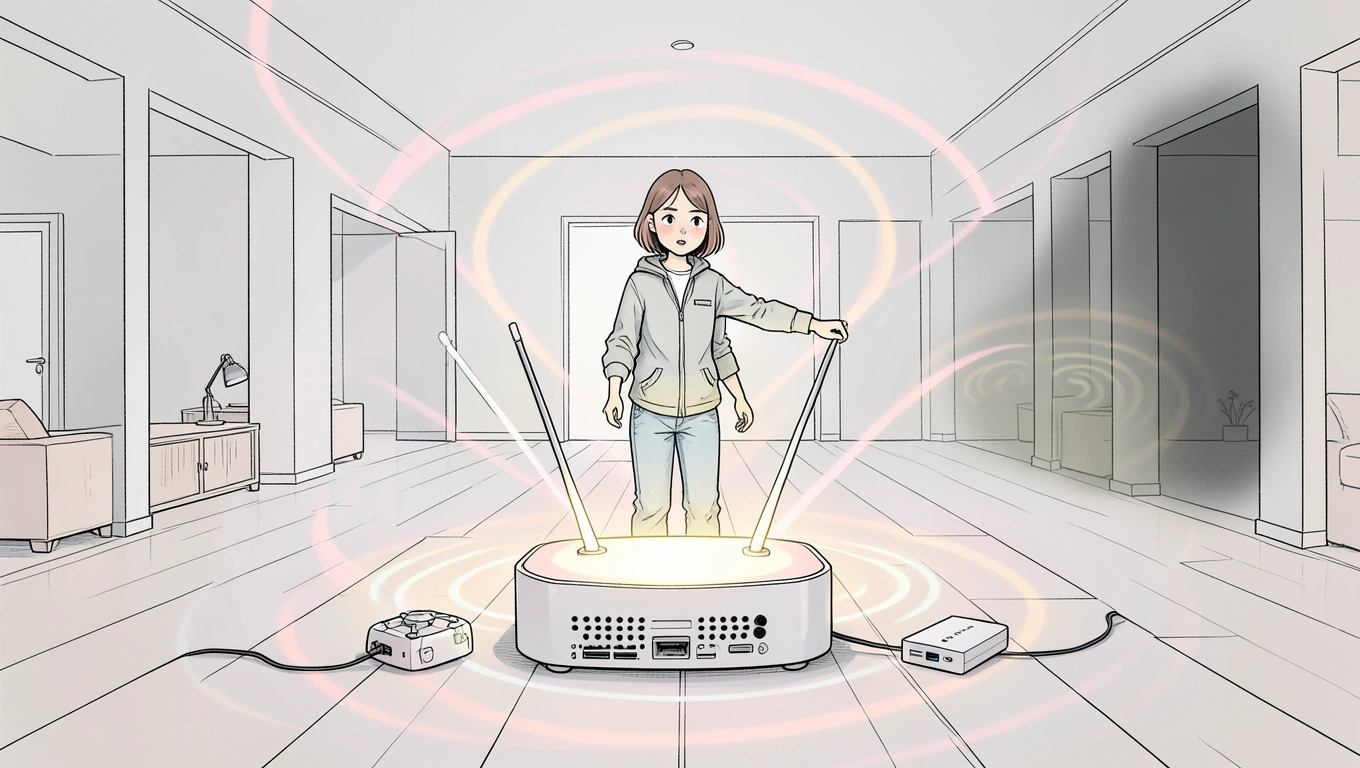
Nothing kills a video call or streaming session faster than walking into a room where your wifi signal just vanishes. You probably have a spot in your house - maybe the back bedroom or the corner of the living room - where your phone suddenly shows one bar and everything grinds to a halt. These dead zones aren't just annoying anymore. They're obstacles to working from home, staying connected, and using all the devices we've come to rely on. The good news? You don't need to be a network engineer or spend thousands to fix this problem. A few straightforward upgrades can eliminate those frustrating dead spots and give you reliable coverage throughout your entire home.
Move Your Router to the Right Spot
Before you buy anything new, look at where your router currently sits. Most people stick it wherever the cable or phone line enters the house, which is often a basement, garage, or corner room. That's exactly where it shouldn't be.
Your wifi signal radiates outward in all directions from your router. If the router is shoved in a corner or basement, you're essentially broadcasting half your signal into the ground or outside your house. Think of it like putting a lamp in the corner of a room - sure, it works, but you're wasting a lot of light.
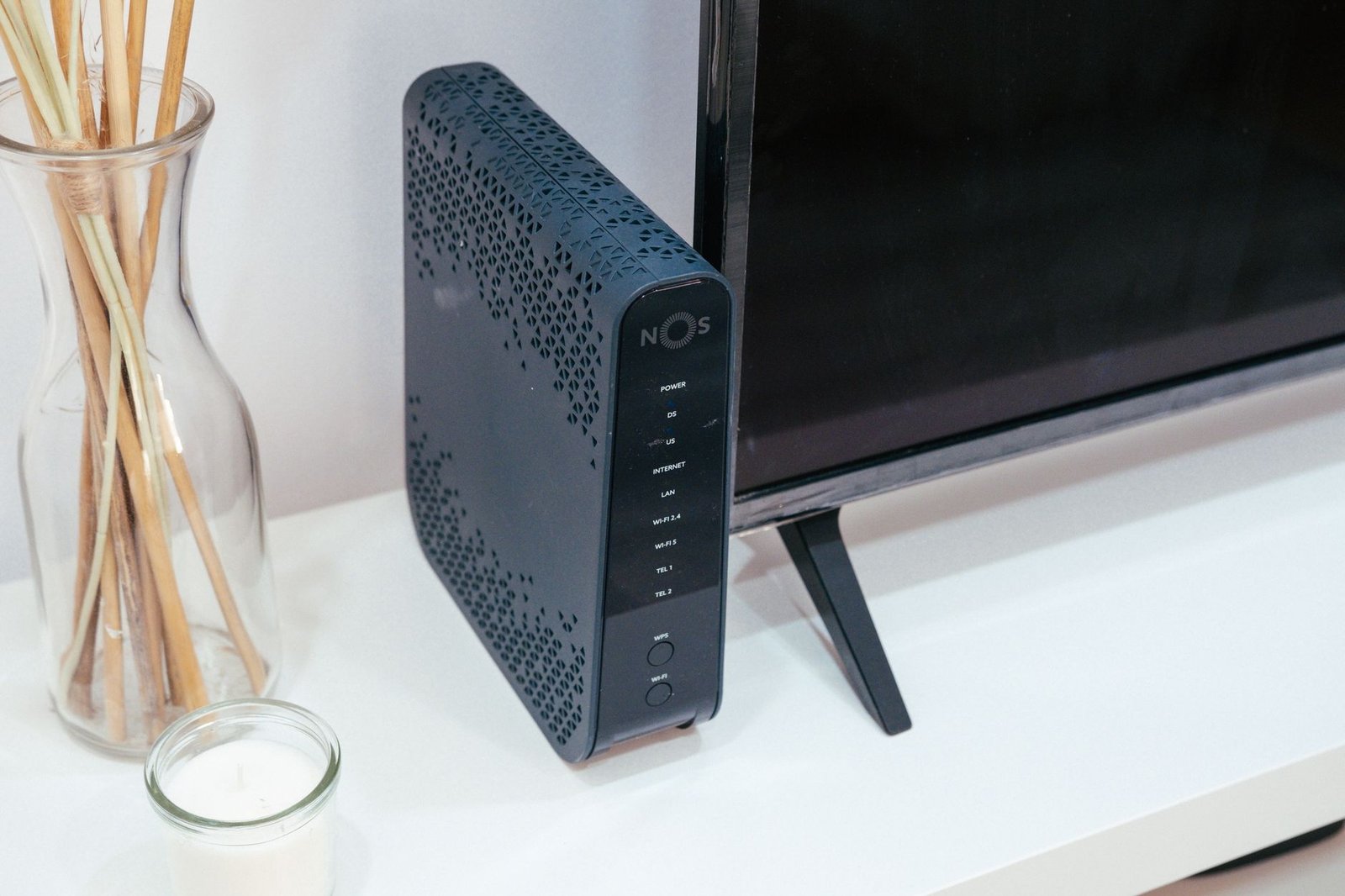
The ideal location is central and elevated. Second floor hallway? Perfect. Top of a bookshelf in a middle room? Even better. You want the router in an open space, away from thick walls and large metal objects. Wireless signals struggle with physical barriers, and materials like brick, concrete, and metal are particularly effective at blocking them.
Keep your router away from other electronics that generate interference. Microwaves operate on the same 2.4 GHz frequency as many routers, and cordless phones can cause similar problems. Even fish tanks - those large bodies of water surrounded by electrical equipment - can disrupt your signal. If moving your router fifteen feet to a more central location eliminates your dead zone problem, you just saved yourself a shopping trip.
Install a Mesh Network System
If repositioning your router doesn't solve the problem, or if you live in a larger home with thick walls, a mesh wifi system is probably your best upgrade. These systems have become more affordable and easier to set up over the past few years, and they're specifically designed to eliminate dead zones.
Traditional wifi works like a single broadcast tower trying to cover everything. A mesh system uses multiple access points that work together as one network. You place nodes throughout your home - typically one every 1,500 to 2,000 square feet - and they communicate with each other to create blanket coverage. Your devices automatically connect to whichever node has the strongest signal as you move around, without you having to switch networks manually.
The real advantage shows up in homes with challenging layouts. Thick plaster walls, multiple floors, or long ranch-style floor plans all create situations where a single router struggles. The Federal Communications Commission notes that building materials and distance are the primary factors in signal degradation, which is exactly what mesh systems address by placing multiple broadcasting points throughout your space.
Setup is straightforward. Most current mesh systems use a smartphone app that walks you through placement and configuration. You plug in the main node where your internet enters the house, then place additional nodes in rooms where you need better coverage. The system tests the connection strength and tells you if nodes are too far apart. Within twenty minutes, you typically have whole-home coverage that reaches every corner.
Add Wifi Extenders for Targeted Coverage
Maybe you don't need coverage everywhere - just one or two specific rooms that currently have weak signals. In that case, wifi extenders or boosters offer a simpler, less expensive solution than a full mesh system.
A wifi extender picks up your existing router's signal and rebroadcasts it. You plug one into an outlet roughly halfway between your router and the dead zone, and it extends your network's reach. They're particularly useful for reaching a detached garage, a finished basement, or a bedroom on the opposite end of the house.
The tradeoff is that extenders create a separate network name - you might have "HomeWifi" and "HomeWifi_EXT" - and you need to manually switch between them as you move around. Some newer extenders create a single network name, but they still don't hand off devices between access points as smoothly as mesh systems do. Speed also takes a hit because the extender uses part of its bandwidth to communicate with your main router.
But if you're just trying to get a decent signal in one problem area, an extender works fine and costs significantly less than other options. Place it where it still gets a strong signal from your main router - at least three bars on your phone - so it has a robust connection to extend. An extender getting a weak signal itself won't help much.
Update Your Router Firmware Regularly
This one costs nothing and takes five minutes, yet most people never do it. Router manufacturers regularly release firmware updates that improve performance, patch security vulnerabilities, and fix bugs that can cause connectivity problems.
Your router is essentially a specialized computer, and like any computer, its software needs updates. Outdated firmware can cause all sorts of issues - dropped connections, reduced range, compatibility problems with newer devices. Sometimes a dead zone isn't caused by physical obstacles at all, but by software that's managing connections poorly.
Check for updates through your router's admin interface. You can usually access this by typing your router's IP address into a web browser - often 192.168.1.1 or 192.168.0.1, though it varies by manufacturer. Look for a firmware or software update section in the settings. Some newer routers update automatically, but many require you to check manually and approve updates.
While you're in the settings, check which wifi channel your router is using. The 2.4 GHz band has multiple channels, and if your neighbors' routers are all using the same one, you're experiencing interference even if your signal strength looks good. Most routers can scan for the least congested channel and switch automatically, but again, you might need to enable this feature or select a better channel manually. The Wi-Fi Alliance provides technical specifications and standards that manufacturers follow to ensure device compatibility and performance.
Summary
- Position your router in a central, elevated location away from walls, metal objects, and electronic interference to maximize coverage before considering hardware upgrades.
- Mesh wifi systems eliminate dead zones by using multiple nodes that create one unified network, ideal for larger homes or those with thick walls and challenging layouts.
- Wifi extenders offer a budget-friendly solution for reaching specific dead zones, though they create separate network names and reduce overall speed compared to mesh systems.
- Regular firmware updates improve router performance, fix connectivity bugs, and address security issues that can contribute to signal problems and dead zones.
- Physical barriers like concrete, brick, and metal significantly weaken wifi signals, making strategic router placement and hardware upgrades essential for consistent coverage.
- Channel interference from neighboring networks can cause dead zones even with strong signal strength - checking and adjusting your wifi channel can resolve these issues.
- The right solution depends on your home's size and layout - simple repositioning may work for apartments, while larger homes typically benefit most from mesh networks.
Final Thought
Dead zones don't have to be a permanent feature of your home. Most people live with frustrating wifi coverage because they assume fixing it requires expensive professional installation or complicated technical knowledge. The reality is much simpler. Whether you need to just move your router to a better spot, add an extender for one problem room, or install a full mesh system for whole-home coverage, these upgrades are straightforward and often surprisingly affordable.
Start with the free fixes - repositioning your router, updating firmware, adjusting channels. If those don't solve the problem, you'll know exactly which rooms need better coverage and can choose the right hardware solution. The difference between constantly fighting dead zones and having reliable wifi throughout your home often comes down to an hour of your time and a purchase that costs less than a few months of your internet bill. Your video calls, smart home devices, and general sanity will thank you.
Questions?
How far can a typical wifi router reach inside a home?
A standard wifi router typically covers about 1,500 square feet indoors under ideal conditions, but walls, floors, and interference reduce this significantly. In homes with thick walls or multiple levels, effective range often drops to 1,000 square feet or less. The 5 GHz band offers faster speeds but shorter range than 2.4 GHz, usually covering about half the distance through obstacles.
Is a mesh system worth the cost compared to extenders?
Mesh systems cost more upfront but provide better performance and easier management, especially in homes over 2,000 square feet or with multiple floors. Extenders work well for adding coverage to one or two specific areas but create separate networks and reduce speed. If you need comprehensive whole-home coverage and frequently move between rooms while using wifi, mesh systems deliver better value despite the higher initial price.
Can I use my old router as a wifi extender?
Yes, many older routers can function as access points or extenders if they support bridge mode or repeater mode in their settings. This requires some manual configuration through the admin interface, and performance won't match dedicated extenders or mesh systems. However, it's a free way to repurpose old hardware if you're comfortable with basic network settings and don't mind the extra setup complexity.
Do wifi dead zones affect smart home devices differently than phones and computers?
Smart home devices like cameras, thermostats, and door locks are often more sensitive to weak signals because they stay in one location and can't move to find better coverage like phones can. Many smart devices also use 2.4 GHz exclusively, which has better range but gets more interference. A dead zone that just slows down your phone might completely disconnect a smart device, making reliable whole-home coverage more critical as you add connected devices.